Relationship types
Understanding relationship types
Relationship types define how different nodes in your discourse graph can connect to each other. Each relationship type has:
- A primary label (e.g., “supports”)
- A complement label (e.g., “is supported by”)
- Rules about which node types can be connected
Adding relationship types
- Open Obsidian Settings
- Navigate to the “Discourse Graphs” settings tab
- Under “Relation Types,” click “Add Relationship Type”
- Configure the relationship:
- Enter the primary label (e.g., “supports”, “contradicts”)
- Enter the complement label (e.g., “is supported by”, “is contradicted by”)
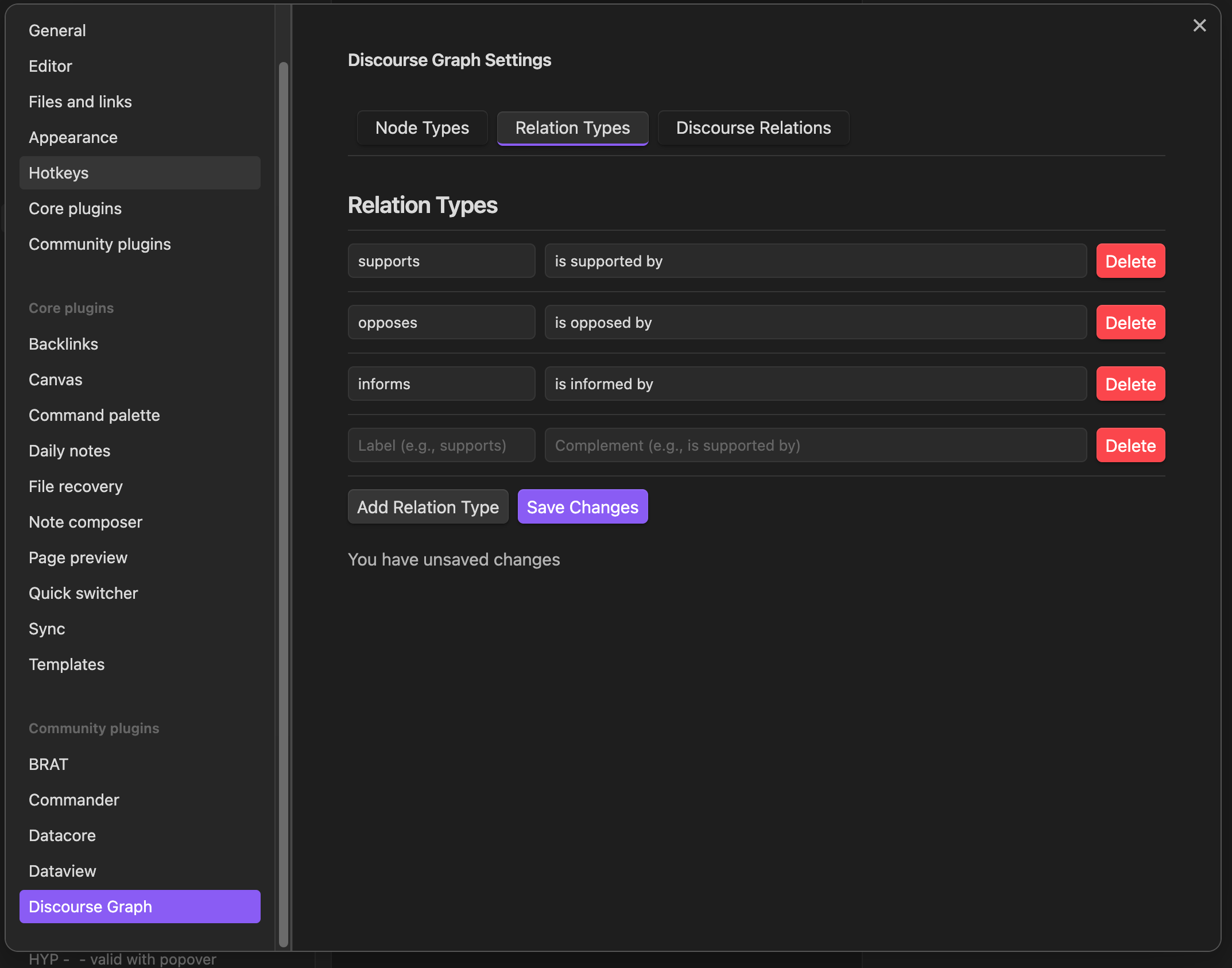
- Click “Save Changes”
Configuring valid relationships
After creating relationship types, you need to define which node types can be connected by each relationship. There are two ways to configure the relationships between two node types.
From the canvas
While connecting two nodes on the canvas, you can add an existing relationship type or create a new one for those node types. See Add a relation type from the canvas.
From settings
- Open Obsidian Settings, then the Discourse Graphs tab
- Open the Discourse relations tab
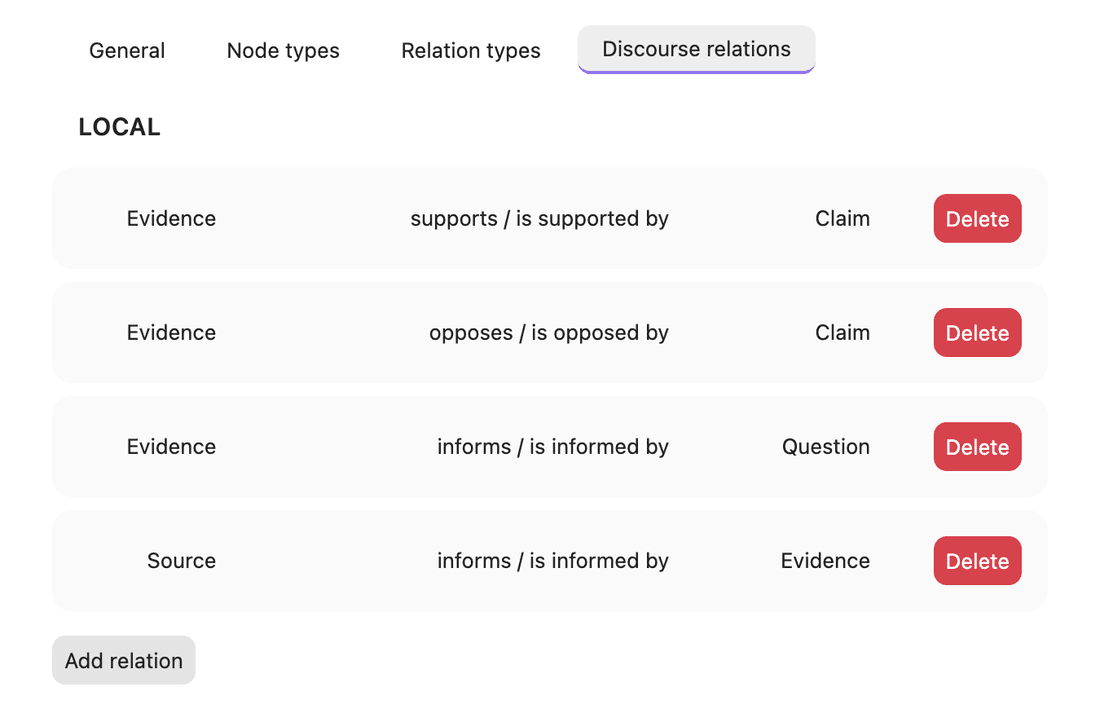
- Click Add relation
- In the new row, choose:
- Source Node Type (for example, Claim)
- Relation Type (for example, supports / is supported by)
- Target Node Type (for example, Question)
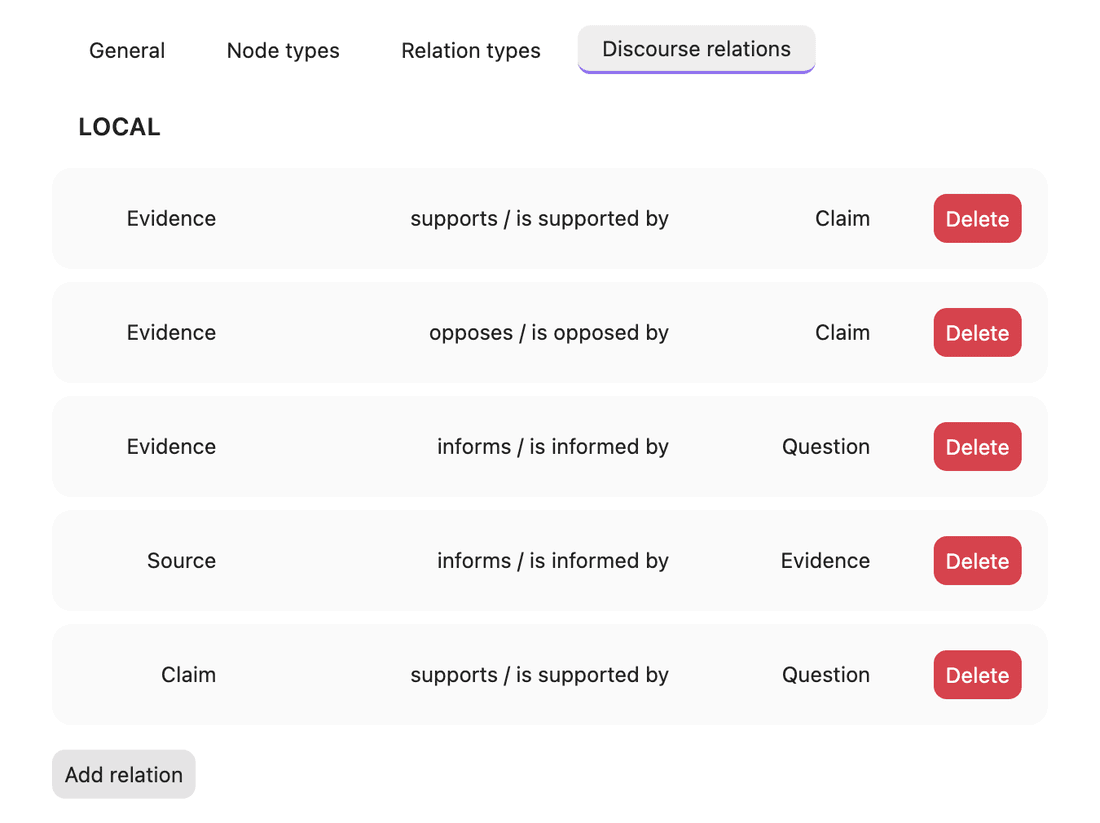
The relation saves automatically once all three are set.
Example relationships
Here are some common relationship types:
- Claim → supports → Question
- Evidence → supports → Claim
- Evidence → contradicts → Claim
- Source → informs → Question
Related
Last updated on